When you need to email one customer, you can do it without leaving EZLynx. You write the message inside the customer's account, and EZLynx saves a copy of it to their Activity log automatically. You don't have to forward anything or copy it from your personal inbox, and everyone on your team can see what you sent.
This articles shows you how to send an individual email, how to use the Is Marketing Email toggle correctly, and how to confirm your email was logged.
TABLE OF CONTENTS
- Before you begin
- Send an individual email
- Confirm your email was logged
- Choose the right Is Marketing Email setting
- Best practice: send from EZLynx
Before you begin
- Make sure the customer or applicant has an email address on their account.
- Decide whether your message is a service email (a policy document, a quote, a coverage confirmation) or a marketing email (a promotion). You'll need to know this when you reach the Is Marketing Email toggle.
Send an individual email
- Open the customer's account. Search for the customer or applicant you want to email and open their record.
Click the email icon. In the icon bar on the left side of the account, select the email (envelope) icon. The Compose Email page opens in a new browser tab.
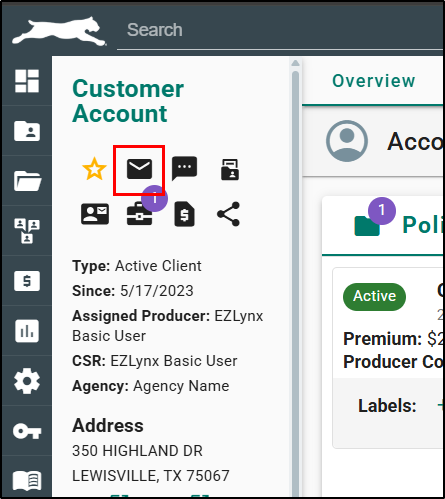
3. Check the From and To addresses. The page works like any other email program, so confirm both addresses are correct before you go further. You can also:
- Select Send me a copy to receive a copy of the message yourself.
- Select CC or BCC to add other recipients.
(Screenshot)
4. Enter a subject. The subject field is required.
5. (Optional) Choose an email template. Open the Email Templates drop-down and select a template. For example, choose the Birthday template to send a birthday greeting. The drop-down lists single-step campaign templates only. Once you pick a template, you can still edit the subject and message.
(screenshot)
6. (Optional) Generate content with EVA. If your agency has the Advanced Package, you can select Generate content with EVA (the EZLynx Virtual Agent) to help you write or refine your message.
7. (Optional) Attach a file. Select Attach to the right of the Attachments field, and choose the file you want to send.
8. Set the Is Marketing Email toggle. Leave it OFF for service mails. Turn it ON only for promotional or marketing content. See Choose the right Is Marketing Email setting below.
9. Review your message. Use the editing tools to format your text, then read through the email and make sure your signature at the bottom is correct.
10. Select Send.
Confirm your email was logged
After you send, open the customer's Activity tab. Your email appears in the Activity log with a red icon, along with the date it was sent. Texts and notes are also displayed in the Activity log, so you have one complete timestamped record for your communication with that customer.
(screenshot)
Choose the right Is Marketing Email setting
This toggle changes what the customer receives, so it's worth getting right every time.
| Is Marketing Email | Use it when you're sending | Examples | What happens |
|---|---|---|---|
| OFF (Default)? | Service or transactional emails | Policy documents, quotes, coverage confirmations | Sends as a normal email |
| ON | Promotional or marketing content | Offers, promotions, announcements meant to market your agency | EZLynx adds a required unsubscribe link |
When Is Marketing Email is ON, EZLynx adds an unsubscribe link to your message. That links is legally required for commercial messages under the CAN-SPAM Act. It also means the customer can use it to stop receiving your emails.
Best practice: send from EZLynx
Whenever you can, send customer emails from EZLynx instead of your personal email account. Each message is saved to the customer's record, timestamped, and visible to your team, which gives you a complete communication history and helps protect your agency in an E&O situation.
If you work in Outlook or Gmail and want your email activity to land in EZLynx from there, check out our EZLynx for Outlook or EZLynx for Gmail articles to learn more.
Need to reach many customers at once? That's a campaign rather than an individual email. Check out our How to Create Bulk/Drip Email Campaigns article to learn more.
We hope this guide helps you email your customer from within EZLynx with confidence. To learn more, check out the Solution Center or EZLynx University from the Support icon on the left navigation bar.
Was this article helpful?
That’s Great!
Thank you for your feedback
Sorry! We couldn't be helpful
Thank you for your feedback
Feedback sent
We appreciate your effort and will try to fix the article